Free charts and a live moving map for X-Plane 11 and 12
SimCharts puts the airport diagram, SIDs, STARs and approach plates for your route next to a moving map of your X-Plane flight. It runs in a browser on a second screen or tablet, so the sim window stays clear.
Free, no credit card. Updated .
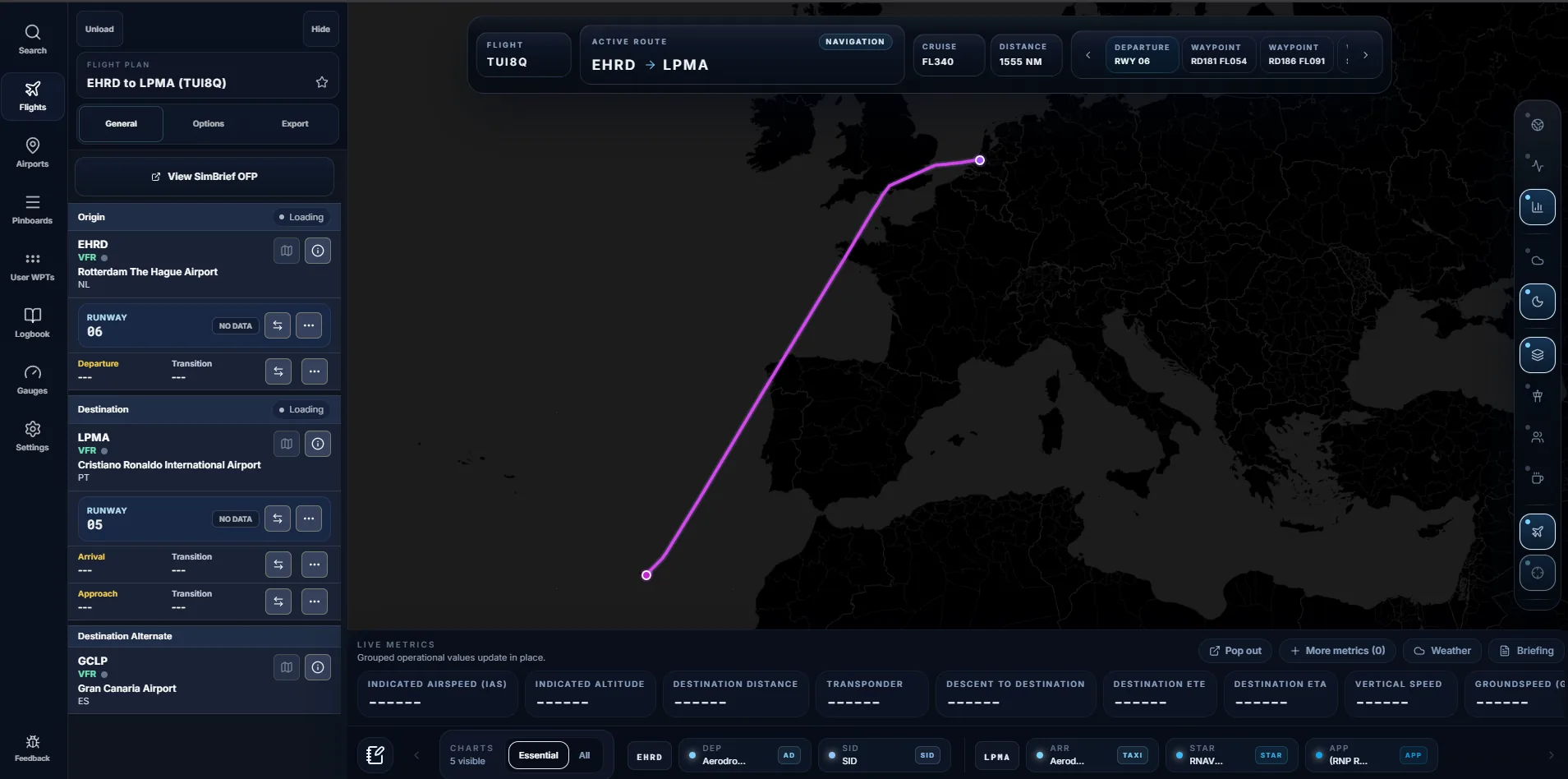
The short answer
X-Plane already knows the procedures; its navdata includes SIDs, STARs and approaches for the FMS. What it does not give you is the published chart, the picture with altitudes, speed limits and missed approach instructions. You can add plates with a paid chart subscription, a free plugin such as AviTab pointed at a chart source, or a companion app that shows charts beside a live map.
SimCharts is the free companion app option. With X-Plane 11 or 12 you get:
- Airport diagrams and procedure charts from ChartFox, grouped per airport.
- Your aircraft on a moving map through the SimCharts Bridge.
- Procedures read from your own X-Plane navdata, so the names match your FMS.
- Decoded METAR and TAF, the favoured runway and its crosswind, and airport frequencies.
- Export to an X-Plane
.FMSfile or GPX.
Chart and map options for X-Plane
These are the tools X-Plane pilots mention most. Each is good at something different, and plenty of people use two of them together.
| Tool | SimCharts | Navigraph Charts | Little Navmap | AviTab plugin |
|---|---|---|---|---|
| Cost | Free | Paid subscription | Free, open source | Free |
| Published charts | Yes, from ChartFox | Yes, worldwide | No, it draws its own map | Shows charts from a source you set up |
| Live moving map | Yes, Bridge on Windows | Yes, with Simlink | Yes, with Little Xpconnect | Inside the cockpit |
| Where it runs | Browser, any device | Desktop, web and tablet apps | Windows, macOS, Linux | Inside X-Plane |
| Flight planning | SimBrief import, export .FMS | Route tools, SimBrief link | Full planner with fuel | No |
Little Navmap is an excellent free planner and map, but it does not show published charts. Navigraph is the complete paid package. AviTab keeps charts inside the cockpit, which is great in VR. SimCharts is the choice when you want charts and the live map side by side outside the sim, at no cost. More on the paid route in SimCharts as a Navigraph alternative.
Connect X-Plane to SimCharts
- Create a free SimCharts account.
- Download the SimCharts Bridge and install it on the Windows PC that runs X-Plane 11 or 12.
- Sign in on SimCharts, open the Bridge page and choose Open SimCharts Bridge to link the desktop app to your session.
- Load a flight plan: import it from SimBrief (how that works) or enter departure and destination.
- Start X-Plane with the Bridge running and enable Sync with Current Flight on the map.
If you use updated navdata in X-Plane's Custom Data folder, the Bridge can read procedures from it, so the SID and STAR lists in SimCharts match what your FMS offers.
Procedures that match your FMS
The most common frustration with free charts in X-Plane is a mismatch: the chart says one transition, the FMS has another, because the chart is from this month and the navdata is from last year. SimCharts reduces that by building the procedure lists from the navdata the Bridge reads from your sim, including transitions, and pairing them with the chart for the same airport.
Pick your departure runway and the SIDs for that runway come first. Choose the STAR and approach and the magenta route on the map is redrawn through those fixes. Then open the plate from the chart strip and it docks next to the map.
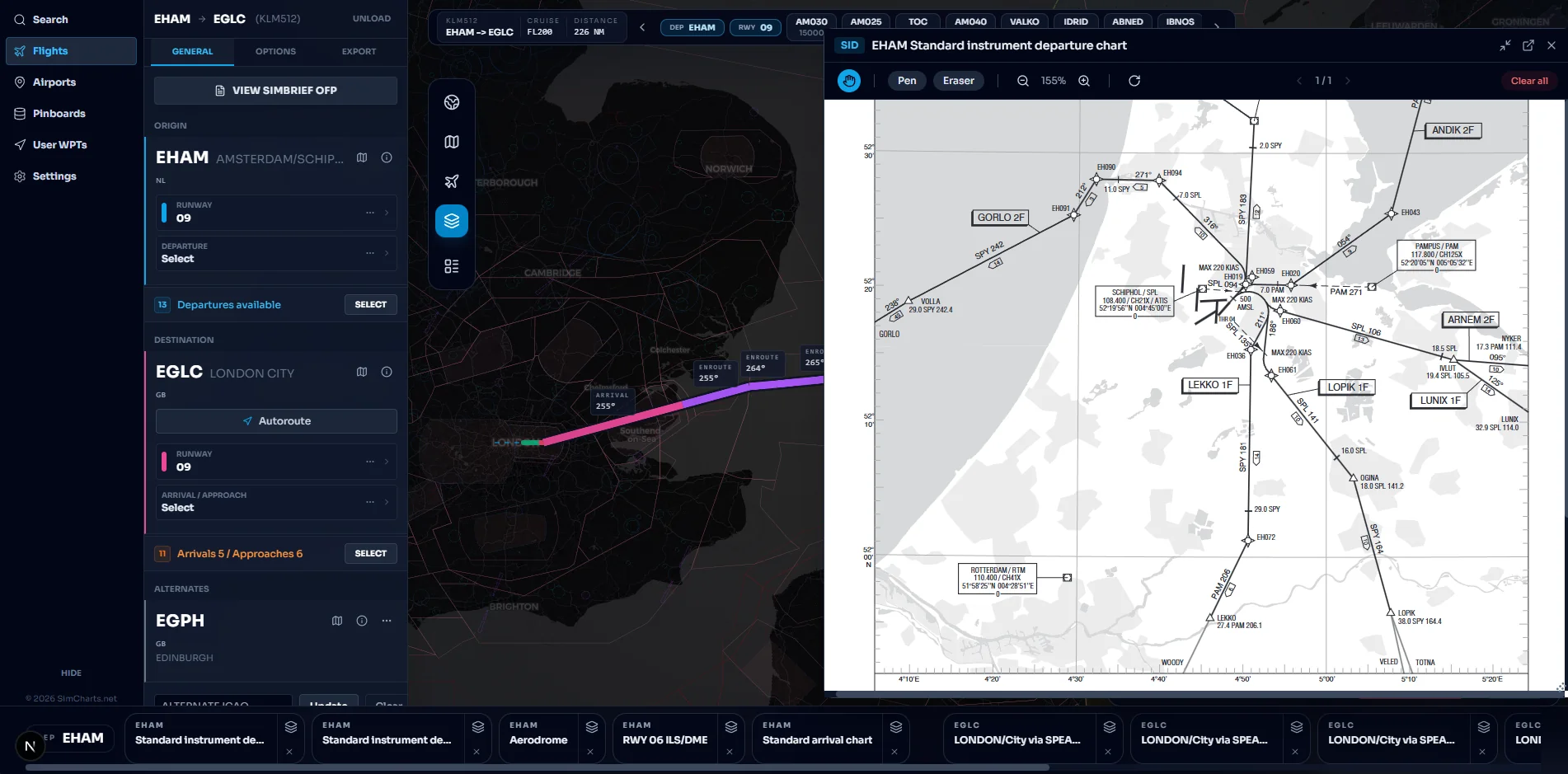
You can explore any airport before you fly, for example San Francisco, Zurich or Vienna.
Tips for X-Plane pilots
- With real weather enabled in X-Plane 12, read the decoded METAR and favoured runway in SimCharts before you choose the arrival. It saves reprogramming the FMS on descent.
- Put SimCharts on a tablet or second monitor. It is built to work in a browser, including on an iPad; see using an iPad as your EFB.
- Flying online? Turn on VATSIM or IVAO traffic and ATC coverage on the same map; see the network map guide.
Also flying MSFS? The setup is the same; read charts and a moving map for MSFS 2020 and 2024.
Questions pilots ask
Does X-Plane 12 include approach charts?
X-Plane ships with navigation data and a built-in map that shows navaids, airways and procedures, but not the published approach plates. Pilots get plates from a chart service, a plugin such as AviTab, or a companion app like SimCharts.
Do I need a plugin for SimCharts in X-Plane?
You install the SimCharts Bridge on the Windows PC that runs X-Plane 11 or 12. It connects to the simulator and sends your position and flight plan to SimCharts in the browser. Charts open in the browser, so nothing is drawn inside the X-Plane window.
Is SimCharts free for X-Plane?
Yes. Charts, the live moving map, SimBrief import and flight plan export are free, with no credit card. An optional supporter subscription helps fund hosting.
Can I load a SimCharts route into the X-Plane FMS?
Yes. Export the route as an X-Plane .FMS file and load it in the aircraft's FMS, or export a GPX file for other tools.
Does SimCharts work with X-Plane on Mac or Linux?
The website works in any modern browser. The Bridge that provides live aircraft position is a Windows app, so the moving aircraft needs X-Plane running on Windows.
Fly your next leg with the chart beside the route.
Open the map in your browser now. Add the Bridge when you want your aircraft on it.