A VATSIM and IVAO map built around your route
Most network maps show the whole world. SimCharts shows the network around the flight you are about to make: live VATSIM or IVAO traffic and online ATC coverage, drawn over your route, with the charts and weather for your airports in the same tab.
Free, no credit card. Updated .
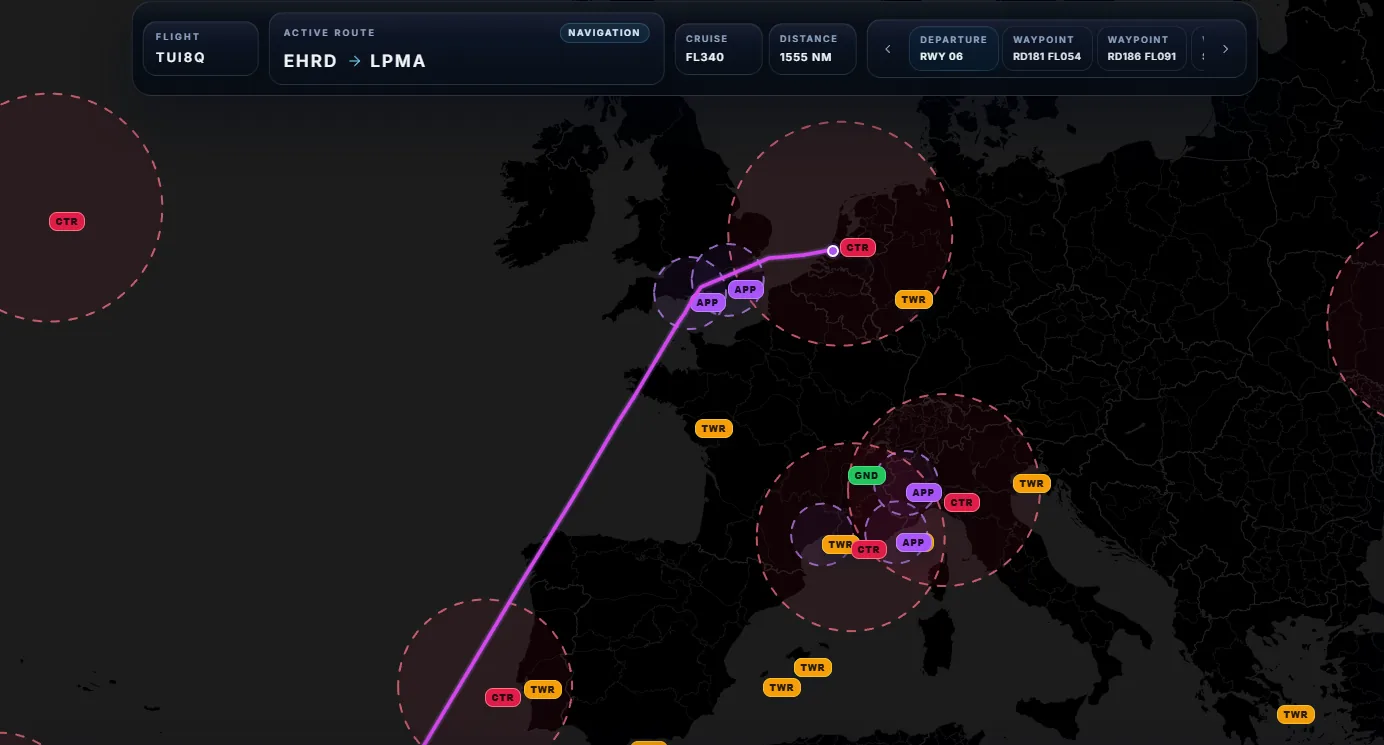
Why look at the network beside your route
The question before an online flight is rarely how busy the network is overall. It is: will anyone be controlling my departure, will I get centre coverage on the way, and is my destination staffed? A world map answers that only after you zoom and click around. With your route already on the map, the answer is visible at a glance.
It also changes how you plan. If an event has staffed a nearby airport, you can pick that destination. If your arrival will be uncontrolled, you know to brief the approach yourself and use the advisory frequency.
Turn on network traffic and ATC
- Open the SimCharts map and load a route, either by importing it from SimBrief (how) or entering departure and destination.
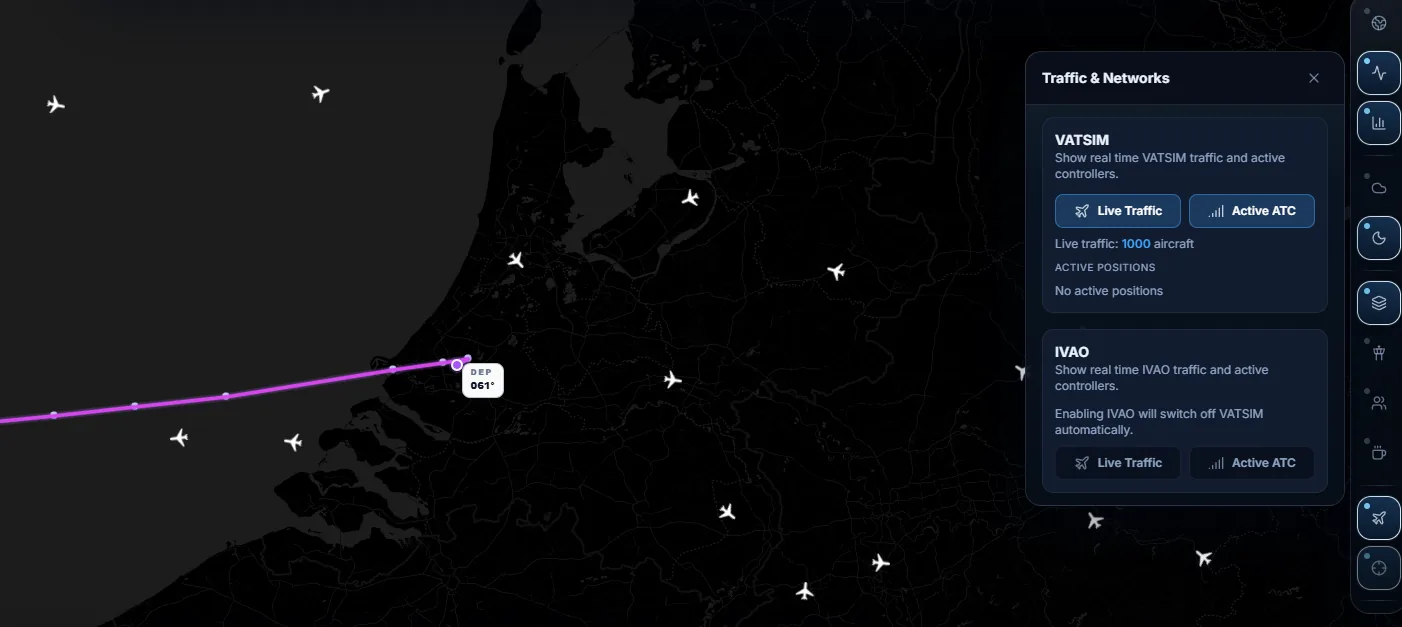
- Open the Traffic and Networks panel from the map tools.
- Under VATSIM, choose Live Traffic for aircraft and Active ATC for controller coverage. Or pick the same options under IVAO.
- Click an aircraft or controller for details, then open the charts for your airports from the chart strip.
- Optional: run the free Bridge so your own aircraft moves among the network traffic.
Reading the ATC coverage
Controller positions follow the usual VATSIM and IVAO naming, and each type is drawn differently:
- CTR (centre, also called area or control) covers a large region, drawn as a wide circle. If you are inside one, that is who you call when nobody lower is online.
- APP (approach or departure) handles traffic around one or more busy airports, drawn as a smaller circle.
- TWR and GND label the airport itself: tower for the runways, ground for taxiing.
Lower positions are often not staffed even when a centre is. In that case the centre usually provides the services top-down, so check the controller info or ATIS for the actual frequency. The published airport frequencies on each SimCharts airport page help here; see Heathrow or Frankfurt.
Network coverage changes by the minute. Check again just before you connect, and especially before an event.
Other VATSIM and IVAO maps
There are several good network maps, and you may already use one. What they focus on, based on their public descriptions:
| Map | SimCharts | VATSIM Radar | VatView (iOS) | Navigraph Charts |
|---|---|---|---|---|
| Cost | Free | Free | Free app | Paid subscription |
| Networks | VATSIM and IVAO | VATSIM | VATSIM | Live traffic feature in beta |
| Your own route and aircraft | Yes, with SimBrief and the Bridge | Track your flight when you link a VATSIM account | No | Yes |
| Charts for your airports | Yes, from ChartFox | No | No | Yes, worldwide |
| Strength | Network, route and charts together | Detailed airport dashboards and stats | Quick look on a phone | Complete paid chart suite |
VATSIM Radar is excellent for watching the network itself, with airport dashboards and fast updates. IVAO has its own official tools too. Use SimCharts when you want that picture tied to the flight you are flying, alongside the plates and weather. Charts and setup are covered in the MSFS and X-Plane guides.
A simple online flight workflow
- An hour before: plan in SimBrief, import into SimCharts, check ATC coverage along the route.
- At the gate: read the decoded METAR and favoured runway, pick the SID, open the chart.
- Connect your pilot client, call delivery or the top-down controller shown on the map.
- Before descent: recheck coverage at the destination and brief the STAR and approach plates.
On a tablet, this whole workflow fits beside your sim; see using an iPad as a flight sim EFB.
Questions pilots ask
How can I see which VATSIM controllers are online on my route?
Load your flight plan in SimCharts, open Traffic and Networks and turn on Active ATC for VATSIM. Controller coverage is drawn on the map around your route, labelled by position such as CTR, APP, TWR and GND.
Does SimCharts show IVAO as well as VATSIM?
Yes. You can show live traffic and active controllers for either VATSIM or IVAO. One network is shown at a time; enabling IVAO switches VATSIM off automatically.
Does SimCharts connect me to VATSIM?
No. To fly online you still connect with your network's pilot client, such as vPilot or xPilot on VATSIM, or Altitude on IVAO. SimCharts shows the network picture next to your route and charts.
Is the VATSIM map in SimCharts free?
Yes. Network traffic and ATC coverage are free, like the rest of SimCharts, with no credit card.
Do I need the Bridge to see VATSIM traffic?
No. Network traffic and ATC coverage work in the browser on their own. The free Bridge adds your own aircraft's live position from MSFS, X-Plane or Prepar3D.
Fly your next leg with the chart beside the route.
Open the map in your browser now. Add the Bridge when you want your aircraft on it.