Free charts and a live moving map for MSFS 2020 and 2024
Open SimCharts in a browser next to Microsoft Flight Simulator, load your flight plan, and the airport diagram, SID, STAR and approach for your route sit one click from the map. Add the free Bridge on Windows and your aircraft moves across that map in real time.
Free, no credit card. Updated .
The short answer
MSFS does not hand you a full chart library for every airport. The default options are the EFB built into MSFS 2024, a paid chart subscription, or downloading plates yourself from each country's aeronautical publication. SimCharts sits in between: it is a free web app that shows charts from ChartFox next to a live map of your flight, and it works with both MSFS 2020 and MSFS 2024.
What you get without paying:
- Airport diagrams, departures (SIDs), arrivals (STARs) and approach charts, grouped per airport.
- Your aircraft position, heading and altitude on a moving map through the SimCharts Bridge.
- Procedures matched to the runway and flight plan you are actually flying.
- Decoded METAR and TAF, the favoured runway with headwind and crosswind, and published frequencies.
- Export back to the sim as an MSFS
.PLNflight plan.
Where MSFS pilots get charts
Most simmers end up combining two or three sources. Here is how the common ones compare for MSFS. Prices change, so check each provider before you subscribe.
| Source | SimCharts | MSFS 2024 EFB | Navigraph Charts | Country AIPs |
|---|---|---|---|---|
| Cost | Free | Included with the sim | Paid subscription | Free |
| Chart coverage | ChartFox coverage, strongest in Europe and the US | Airline-focused, varies by airport | Worldwide, commercial charts | One country per site |
| Live aircraft on a map | Yes, with the free Bridge | Inside the sim | Yes, with its own connector | No |
| Runs outside the sim window | Any browser, including iPad | No, in-sim tablet | Desktop, web and tablet apps | PDF downloads |
| Procedures tied to your route | Yes | Partly | Yes | No |
Navigraph is the most complete option and the right call if you need every chart worldwide with current commercial data. If you mainly fly between well-covered airports and want everything free, SimCharts gets you most of the way. For a fuller look at the trade-offs, read SimCharts as a Navigraph alternative and where to get free flight sim charts.
Set it up for MSFS
This takes a few minutes the first time. After that it is open the browser, start the sim, fly.
- Create a free SimCharts account. No credit card is asked for.
- Download the SimCharts Bridge for Windows and run the installer on the PC that runs MSFS 2020 or 2024.
- Sign in on SimCharts, open the Bridge page and choose Open SimCharts Bridge. The desktop app links itself to your browser session.
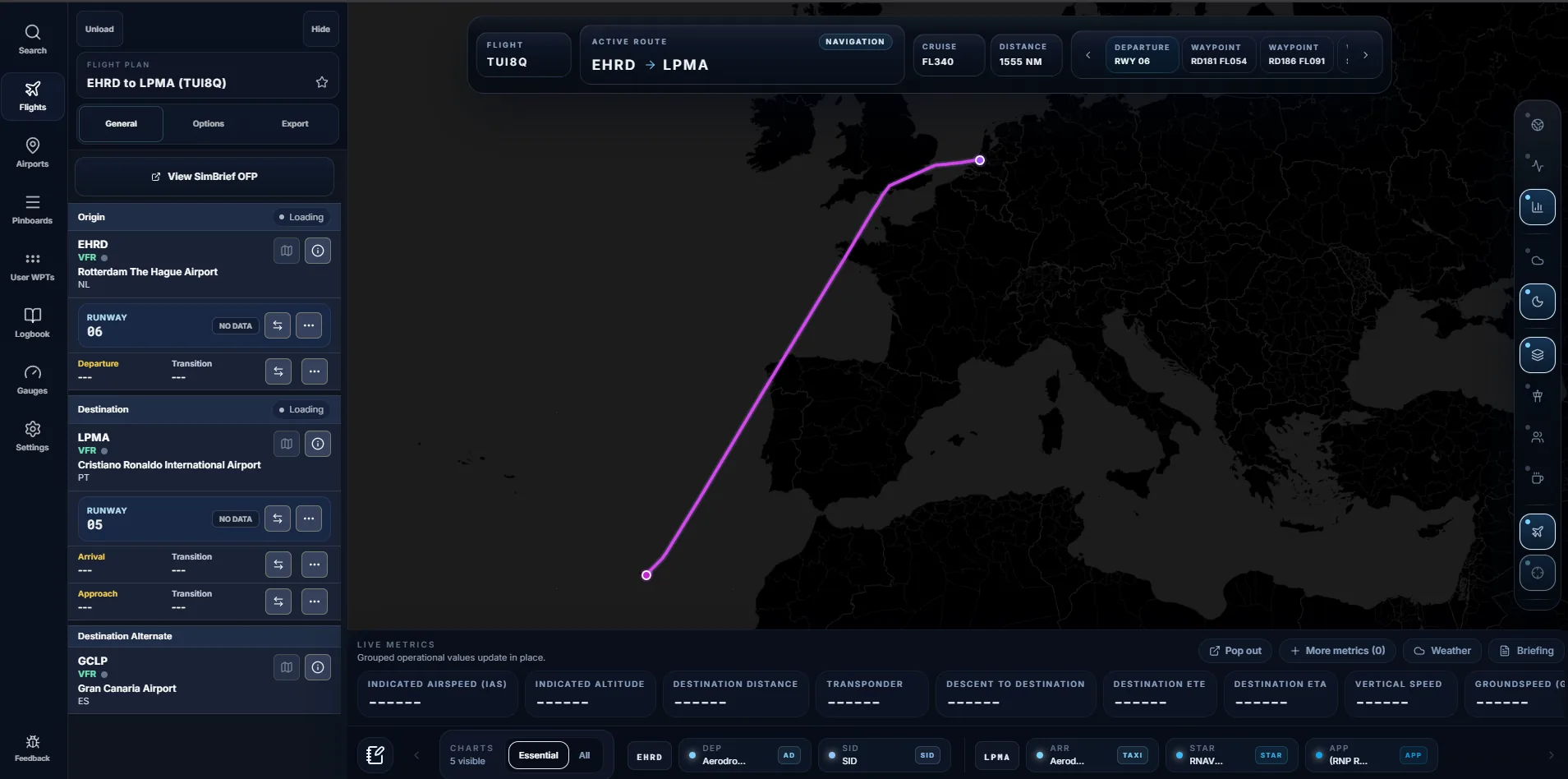
- Load your route. Import your latest SimBrief flight plan with your username or Pilot ID (see the SimBrief guide), or type the departure and destination ICAO codes.
- Start a flight in MSFS with the Bridge running, then enable Sync with Current Flight on the map. Your aircraft appears and the map follows it.
MSFS 2020 and 2024 both talk to the Bridge through SimConnect, so the steps are the same in either sim.
Charts that follow your flight plan
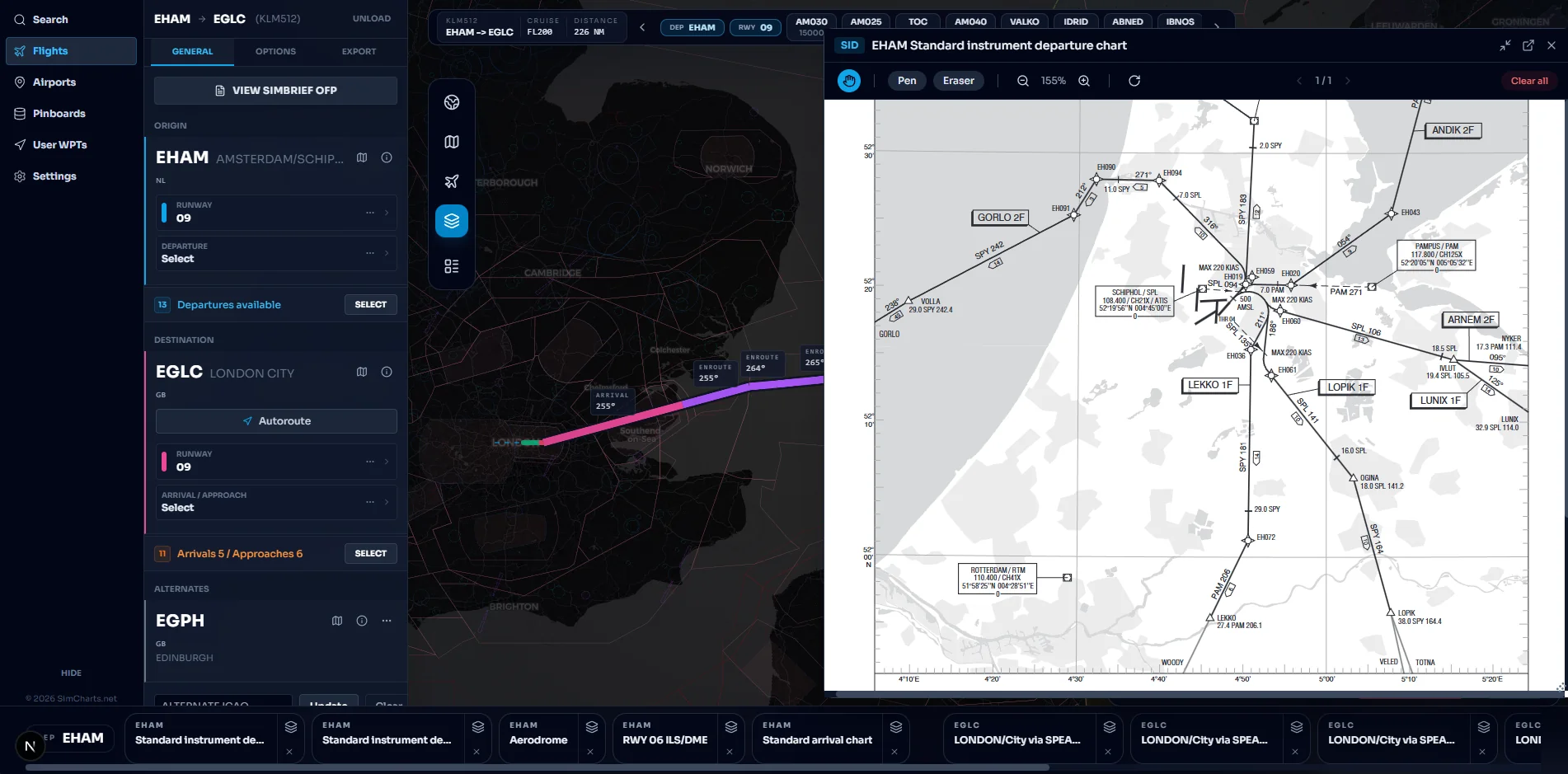
A chart viewer that only lists PDFs makes you hunt for the right plate at the worst moment. SimCharts starts from your route instead. Pick a departure runway and the matching SIDs are offered first. Choose a STAR and approach for the arrival runway and the route on the map is redrawn with those legs, so you can see the arrival before you brief it.
The chart strip keeps the essential plates for departure and arrival in one row. Open one and it docks beside the map instead of covering it, with pen and eraser tools for your own notes. You can browse any airport too: try Amsterdam Schiphol, London Heathrow or New York JFK.
Weather, runway and frequencies
MSFS live weather is based on real-world data, so the real METAR at your destination usually tells you which runway is in use. SimCharts decodes the METAR and TAF into plain wind, visibility, cloud and pressure values, and works out the favoured runway with its headwind and crosswind components. Published frequencies for the airport are listed next to it, which helps when you fly online or tune the ILS.
Limits worth knowing
- Chart coverage depends on ChartFox. Europe and the US are well covered; some regions and small fields have gaps.
- Real-world charts follow the current AIRAC cycle, while your sim navdata may be older or newer. Procedure names can differ by a letter or number, so check the chart against what your FMS offers.
- The Bridge is a Windows app. Live position needs the sim running on a Windows PC.
Flying X-Plane as well? The same account works there; see charts and a moving map for X-Plane.
Questions pilots ask
Does MSFS 2024 come with charts?
MSFS 2024 has its own EFB with flight planning and airport information, and Navigraph subscribers can show Navigraph charts in it. Pilots on community forums report that the bundled chart coverage is airline focused, so smaller fields can be missing. SimCharts is a free option that works next to the sim in a browser.
Are the charts in SimCharts free?
Yes. SimCharts is free and every feature is available without a credit card. Charts come from ChartFox, a free community chart source. There is an optional supporter subscription that only helps fund hosting.
Does the live map work with MSFS on Xbox?
The SimCharts Bridge runs on a Windows PC next to the simulator, so live aircraft position needs MSFS on PC. On Xbox you can still open SimCharts in a browser for charts, weather and your SimBrief route, without the moving aircraft.
Do I need the SimCharts toolbar panel in MSFS?
The Bridge reads data through SimConnect. If no data appears after you start a flight, open the SimCharts panel from the MSFS toolbar, which the Bridge setup page also mentions.
Can I use these charts for real flying?
No. SimCharts is built for flight simulation only and must not be used for real-world navigation.
Fly your next leg with the chart beside the route.
Open the map in your browser now. Add the Bridge when you want your aircraft on it.