Load your SimBrief flight plan on a live map, with charts
SimBrief writes a great OFP; it just does not show you where you are on it. Import your latest SimBrief flight into SimCharts and the route, airports, charts and weather sit on one map, with your aircraft moving along it in MSFS or X-Plane.
Free, no credit card. Updated .
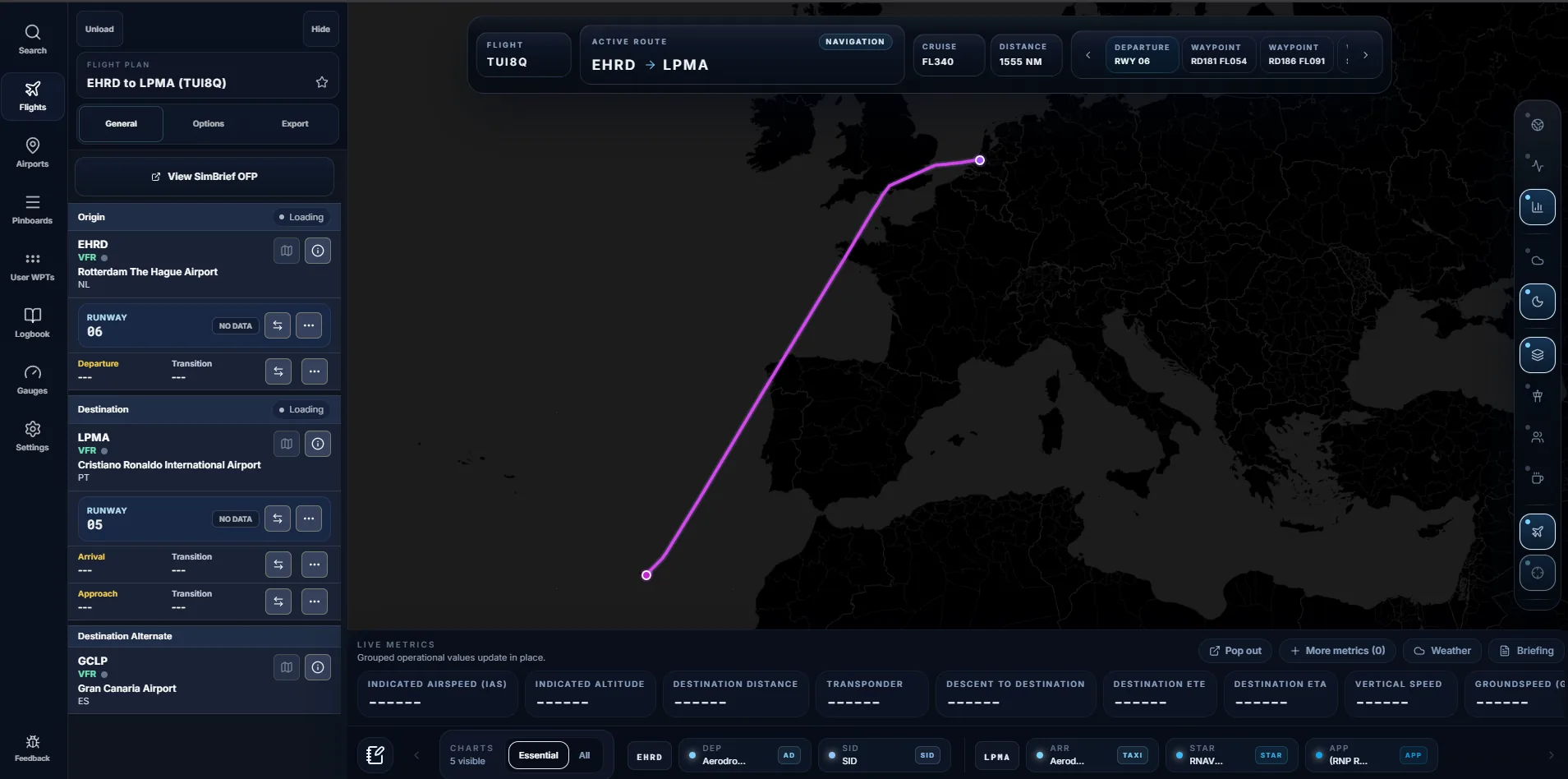
Import a SimBrief flight in under a minute
- Generate your flight on simbrief.com as usual. SimCharts always reads your latest OFP, so plan first.
- Open the SimCharts map and go to the Flights panel. Signing in with a free account lets SimCharts remember your setup.
- Choose Import from SimBrief and enter your SimBrief username or your numeric Pilot ID. To skip this next time, save your username under Settings, Integrations.
- Check the departure runway and SID, then the STAR and approach for the arrival. Change any of them and the route is redrawn.
- Want your aircraft on the map? Run the free SimCharts Bridge next to the sim and enable Sync with Current Flight.
The error "user not found" usually means a typo or a Pilot ID pasted into a username field. SimCharts detects numeric IDs automatically, so pasting the number on its own works.
What appears on the map
After import, the whole flight is in one workspace instead of a PDF and a separate map:
- The route as a magenta line with its waypoints, plus cruise level and total distance.
- Origin, destination and alternate airports with runway selectors.
- SIDs, STARs and approaches offered for the chosen runways and drawn onto the route.
- A chart strip with the airport diagram and procedure charts for both ends.
- Decoded METAR and TAF for your airports, the favoured runway and its crosswind.
- A button to open the original SimBrief OFP when you need fuel or weights.
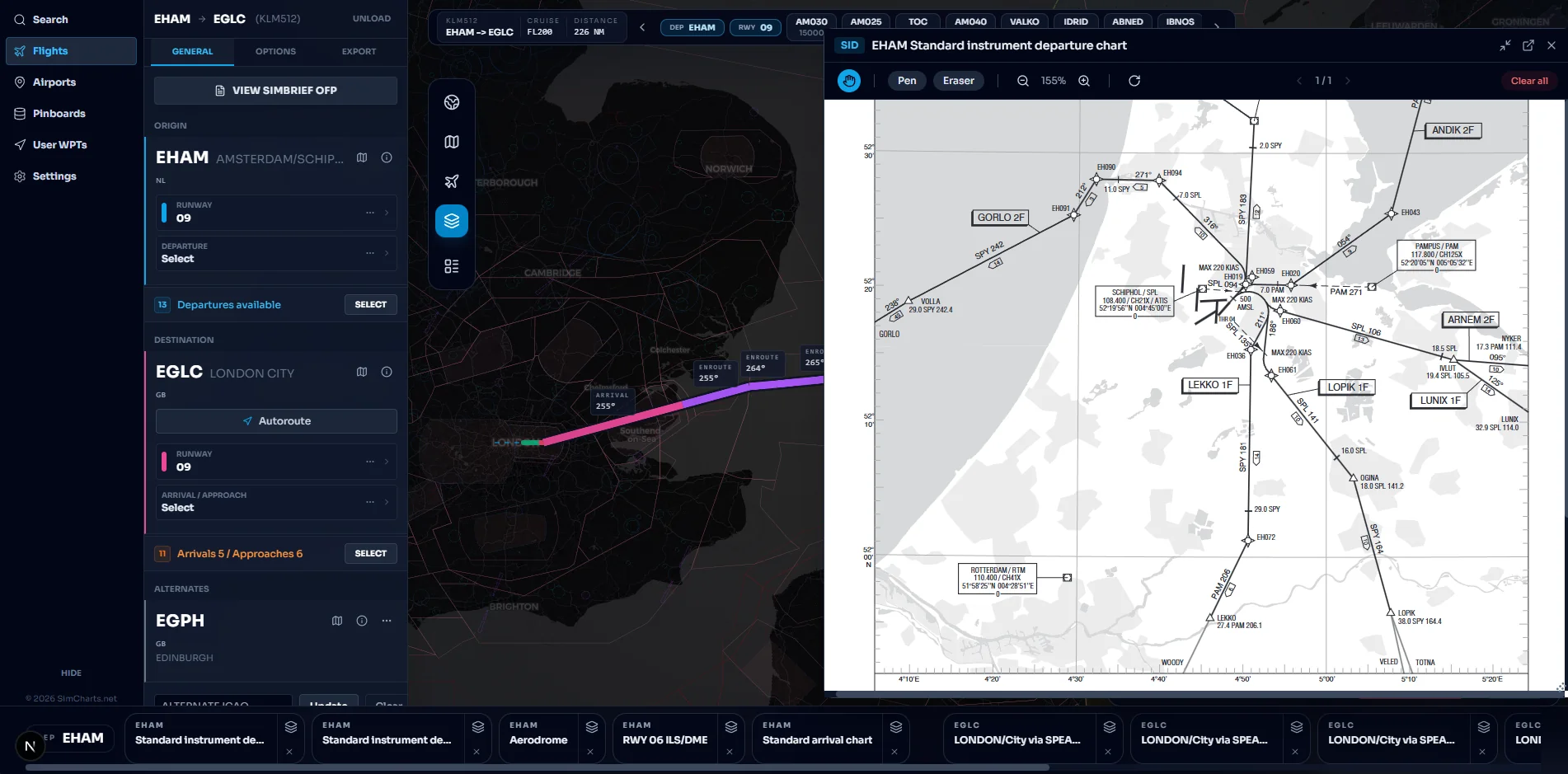
Changing the SID or STAR after import
SimBrief picks a SID and STAR when you plan. By the time you are at the gate the active runway may have changed. In SimCharts you choose the new runway and procedure from the lists for that airport and the route on the map is rebuilt with the new legs, replacing the old ones instead of stacking them. Then open the matching chart from the strip to brief it.
If you fly online, check who is controlling first. Turn on VATSIM or IVAO ATC coverage on the same map (network map guide) and listen for the runway in use.
Sending the route to your sim
SimBrief can already download flight plans in many formats. SimCharts adds export after your edits, so the runway and procedures you just chose go with the route: an MSFS .PLN, an X-Plane .FMS, or GPX for other tools.
Other ways to see a SimBrief plan on a map
SimBrief works with lots of tools. A few that pilots use to visualise the plan, described from their public listings:
| Tool | SimCharts | In-sim SimBrief panels | Little Navmap | Navigraph Charts |
|---|---|---|---|---|
| Cost | Free | Free community add-ons | Free, open source | Paid subscription |
| Where it runs | Browser, any device | Inside MSFS | Windows, macOS, Linux | Desktop, web and tablet apps |
| Live aircraft | Yes, with the Bridge | Yes, in the sim | Yes, with its connectors | Yes |
| Published charts | Yes, from ChartFox | No | No | Yes, worldwide |
| VATSIM and IVAO traffic | Yes | No | Yes, online network traffic | Live traffic in beta |
In-sim panels from flightsim.to are handy if you never leave the cockpit view. Little Navmap is the deepest free planner, with fuel and performance. SimCharts suits pilots who want the plan, the plates and the network picture on a second screen or tablet, free. Read about running it on an iPad or setting it up for MSFS and X-Plane.
Questions pilots ask
How do I show my SimBrief flight plan on a map?
Generate the flight in SimBrief, then in SimCharts open the Flights panel, choose Import from SimBrief and enter your SimBrief username or Pilot ID. Your latest OFP route appears on the map with departure, destination and alternate airports.
Where do I find my SimBrief Pilot ID?
Your Pilot ID is the number shown in your SimBrief account settings on simbrief.com. SimCharts accepts either the Pilot ID or your SimBrief username.
Do I need a Navigraph subscription to use SimBrief with SimCharts?
No. SimCharts reads the flight plan you generated in SimBrief. A free SimBrief account is enough, and SimCharts itself is free.
Does the map update when I change the SID or STAR?
Yes. Choose a different departure, arrival or approach in SimCharts and the route on the map is redrawn with the new procedure legs.
Can I send the route back to my simulator?
Yes. Export the route as an MSFS .PLN file, an X-Plane .FMS file, or GPX.
Fly your next leg with the chart beside the route.
Open the map in your browser now. Add the Bridge when you want your aircraft on it.