Use your iPad as a free flight sim EFB
The iPad next to your keyboard can be a proper electronic flight bag for MSFS and X-Plane: your aircraft on a moving map, the chart for the procedure you are flying, your SimBrief plan and the weather. SimCharts does that in Safari, with no app to install.
Free, no credit card. Updated .
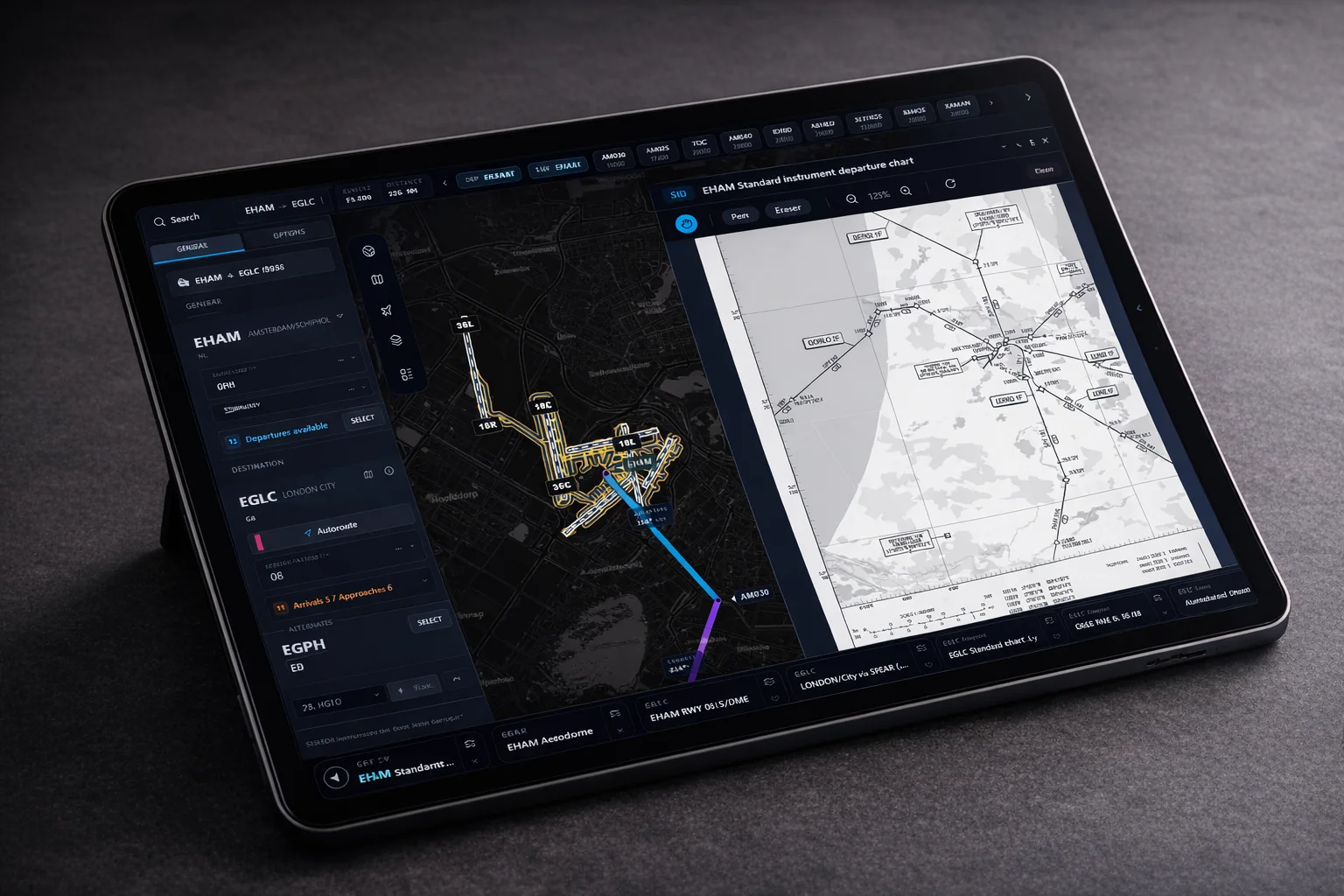
Why put the EFB on a tablet
Popping charts up inside the sim covers the instruments you are trying to fly, and alt-tabbing out of full-screen breaks your flow. A tablet works the way it does in a real cockpit: the chart is in your hand or on a stand, and the sim keeps the whole screen.
A good sim EFB on a tablet should give you:
- Your live position on a map, so you can see where you are on the procedure.
- The airport diagram, SID, STAR and approach for the flight, one tap away.
- The flight plan, with weather and runway information for both ends.
- Something readable at arm's length, in landscape, without fiddly menus.
Set up SimCharts on an iPad
- On your PC, create a free account and install the SimCharts Bridge, then link it from the Bridge page.
- On the iPad, open Safari, go to simcharts.net and sign in with the same account.
- Tap Share, then Add to Home Screen, so SimCharts opens full screen like an app.
- Load your route: import from SimBrief (guide) or enter departure and destination.
- Start your flight in MSFS, X-Plane or Prepar3D with the Bridge running and enable Sync with Current Flight. The aircraft appears on the iPad map.
For long flights, set Auto-Lock to Never in the iPad's Display and Brightness settings while you fly, and keep it on power.
What it looks like in flight
In landscape, the flight panel, the map and an open chart fit side by side. The chart strip along the bottom holds the essential plates for departure and arrival, so switching from the SID to the airport diagram is a single tap. Charts can be zoomed and marked up with the pen and eraser tools.
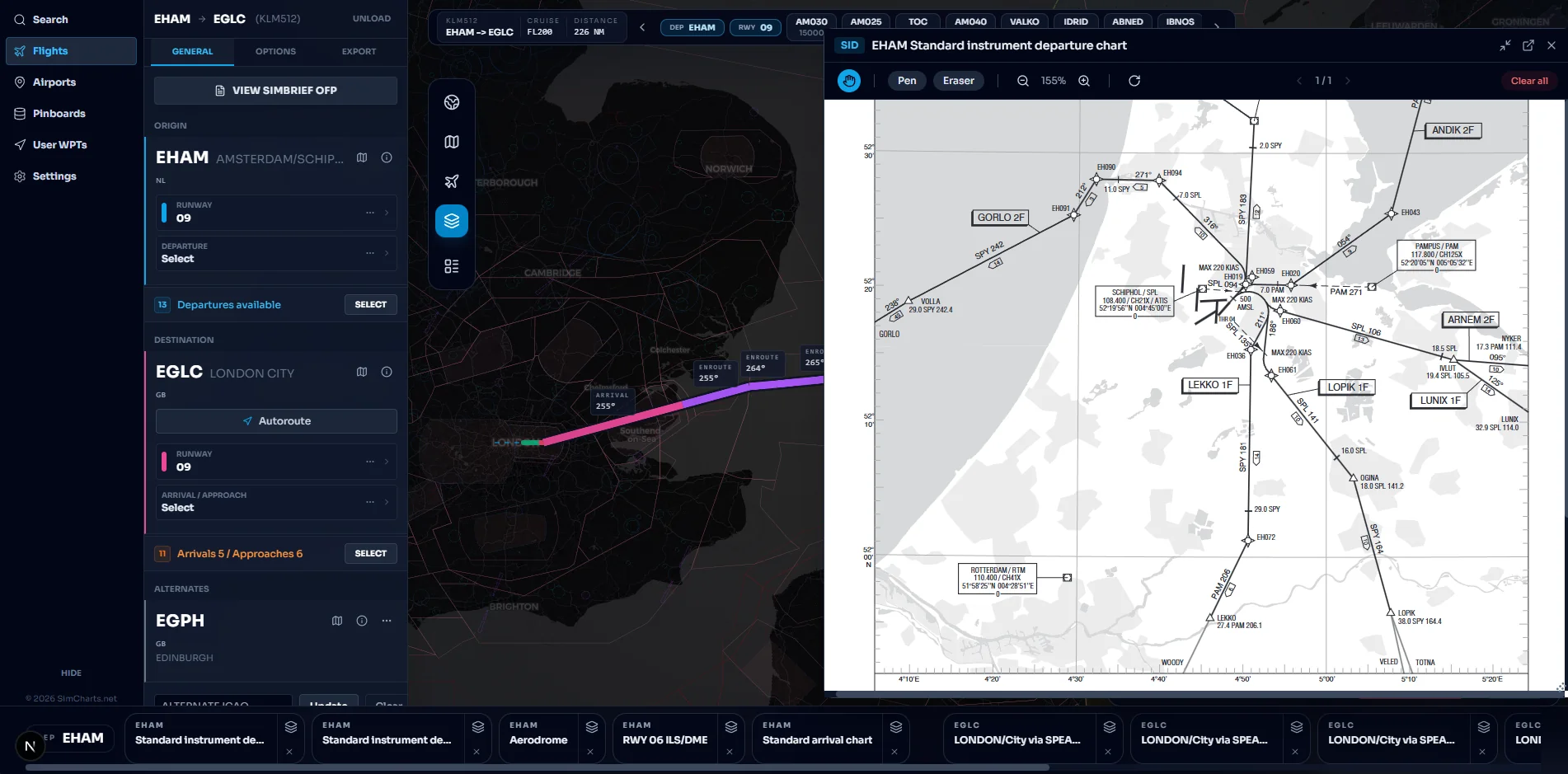
Above the map, the route bar shows the flight number, cruise level, distance and the next waypoints. Decoded METAR and TAF, the favoured runway with headwind and crosswind, and airport frequencies are a tap away. Press Ctrl+K with a keyboard attached to jump straight to an airport, chart or setting.
Free iPad EFB options compared
There are a few free ways to get sim data onto a tablet, described here from their public listings. Check each for your sim version, since sim updates can break connectors.
| Option | SimCharts | Native EFB apps (FS2EFB, NaviSim) | FS2FF with ForeFlight |
|---|---|---|---|
| Install on iPad | None, runs in Safari | App Store app | ForeFlight app, utility on PC |
| Published procedure charts | Yes, from ChartFox | Varies by app | Depends on your ForeFlight plan |
| Simulators | MSFS 2020 and 2024, X-Plane 11 and 12, Prepar3D | Mainly MSFS | MSFS |
| SimBrief import | Yes | Varies by app | No |
| VATSIM and IVAO traffic | Yes | Some apps | No |
Native apps can work offline and feel at home on iOS. FS2FF is a neat trick if you already pay for a real-world EFB. SimCharts is the option that needs nothing installed on the tablet and brings charts, route and network traffic together. If you fly online, read the VATSIM and IVAO map guide.
Tips for a tidy tablet setup
- Use a stand or a desk mount at the same height as your monitor so you can glance across without moving your head far.
- Before the flight, open the charts you will need so they are ready in the chart strip.
- Browse airports ahead of time; for example Amsterdam Schiphol, Lisbon or Sydney.
Sim-specific setup lives in the guides for MSFS and X-Plane.
Questions pilots ask
Can I use my iPad as an EFB for Microsoft Flight Simulator?
Yes. Open SimCharts in Safari on the iPad, sign in, and run the free SimCharts Bridge on the PC that runs MSFS. Your aircraft, route and charts appear on the iPad. There is no official Microsoft iPad EFB, so all options are third-party.
Do I need to install an app on the iPad?
No. SimCharts is a web app and runs in Safari. You can add it to your Home Screen from Safari's Share menu so it opens like an app.
Does the iPad need to be on the same network as my PC?
No. The Bridge on your PC sends data to your SimCharts account, and the iPad reads it from there. Both just need an internet connection and the same signed-in account.
Does it work on Android tablets too?
Yes. SimCharts runs in modern browsers, so Android tablets, laptops and a second monitor all work the same way.
Is the iPad EFB free?
Yes. SimCharts is free with no credit card, including live position, charts and SimBrief import. An optional supporter subscription funds hosting.
Fly your next leg with the chart beside the route.
Open the map in your browser now. Add the Bridge when you want your aircraft on it.